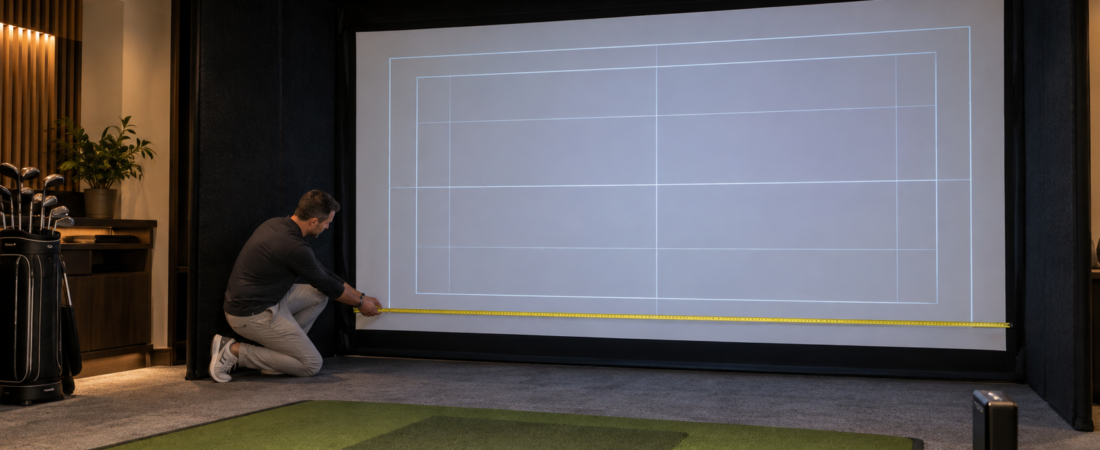
Choosing an impact screen involves more than finding a size that fits between the walls. The screen shape must also work with the projector and simulator software. That shape is described by its aspect ratio.
The most common aspect ratios for home golf simulators are 4:3, 16:9, and 16:10. A wider 16:9 screen can create a more panoramic experience, while a 4:3 screen often makes better use of the available height in a narrower room. Understanding the differences before choosing a screen, enclosure, or projector can prevent black bars, unused screen space, and distorted images.
What Is an Aspect Ratio?
Aspect ratio describes the relationship between an image’s width and height. It does not describe the screen’s actual size.
A 4:3 screen has four units of width for every three units of height. A screen that is 12 feet wide and 9 feet high has a 4:3 shape. A 16:9 screen is considerably wider in relation to its height. A screen measuring 16 feet wide and 9 feet high has a 16:9 shape.
The same ratio can apply to screens of many different sizes. An 8-by-6-foot screen and a 12-by-9-foot screen are both 4:3 because their proportions are the same.
Why Aspect Ratio Matters
The projector produces an image with a particular shape. If that shape matches the impact screen, the image can fill the viewing area without leaving large unused sections or spilling beyond the edges.
When the projector’s output and screen do not match, several things can happen. Black or unused areas may appear above, below, or beside the image. Part of the image may extend onto the enclosure border, or the picture may stretch and appear unnatural.
You can correct some mismatches through projector, computer, or simulator software settings. However, those adjustments may reduce the number of pixels being used or change the required throw distance. It is easier to plan compatible components from the beginning.
The 4:3 Aspect Ratio
A 4:3 screen is taller and more square-shaped than a widescreen format. It is often a practical choice for home simulators where ceiling height is available but room width is limited.
For example, a 9-foot-high 4:3 image would be approximately 12 feet wide. That size fits in many residential rooms while still providing a tall image and useful protection above the target area.
The additional relative height can make a 4:3 enclosure feel well suited to golf. Ball flight extends upward, and golfers generally benefit from a screen that provides meaningful height rather than one that is extremely wide but relatively short.
The trade-off is that most modern video content and many projectors use a wider native format. A widescreen projector can often display a 4:3 image, but some of its available resolution may go unused unless the projector or computer supports an appropriate custom resolution or screen-fill feature.
The 16:9 Aspect Ratio
The 16:9 format is the familiar widescreen shape used by modern televisions, full-HD video, 4K content, and many projectors. It can provide an immersive view of the virtual course when the room is wide enough to accommodate it.
A 9-foot-high 16:9 image would require approximately 16 feet of width. Once the enclosure frame and side clearance are added, the room may need to be substantially wider. This is why a true 16:9 screen can be difficult to fit into a typical garage, basement, or spare room.
When space is available, 16:9 usually works naturally with a projector’s full-HD resolution of 1920 by 1080 or 4K resolution of 3840 by 2160. Matching the projector’s native shape lets you use more of its available pixels.
A 16:9 screen also makes sense if the simulator room will double as a home theater or entertainment space. Movies, television programs, and video games commonly use the same widescreen format.
The 16:10 Aspect Ratio
The 16:10 format is slightly taller than 16:9 yet wider than 4:3. It offers a useful middle ground when a golfer wants a widescreen image but lacks the width for a full 16:9 installation at the desired height.
Some business and commercial projectors use a native 16:10 resolution, such as 1920 by 1200. Matching one of these projectors with a 16:10 screen can make efficient use of its available pixels.
The difference between 16:9 and 16:10 may appear small, but it can affect screen dimensions, projector placement, and image settings. Confirm which formats the projector and simulator software support before selecting this ratio.
Square and Custom Screen Shapes
Some rooms are better suited to a nearly square screen, especially when width is very limited. A 1:1 screen has equal width and height and can maximize the visible image within a tall, narrow area.
Custom screen shapes may also be necessary when the enclosure must fit around unusual walls, ceilings, beams, or other obstructions. A custom-sized impact screen can fit the room even when its proportions don’t match a standard image format.
The challenge is filling a square or nonstandard screen with a conventional projector. The computer or projector may need a custom resolution, and some screen area may remain unused. Confirm that the intended projector and simulator software can produce an acceptable image before ordering a custom screen.
Let the Room Help Determine the Ratio
The room’s usable width and height should guide the aspect-ratio decision. Begin by measuring the area available for the enclosure, including clearance for its frame and installation.
If room width is the limiting factor, a 4:3 or more square-shaped screen may provide greater image height without requiring an excessively wide enclosure. If the room is wide and the ceiling is relatively low, 16:9 may make better use of the available space.
Do not size the screen all the way to the walls or ceiling. Allow for the enclosure frame, screen attachments, side protection, overhead equipment, baseboards, and any space needed during assembly.
Calculate the Screen’s Approximate Ratio
You can estimate the aspect ratio by dividing the screen width by its height. The result can then be compared with common formats:
4 divided by 3 equals approximately 1.33.
16 divided by 10 equals 1.60.
16 divided by 9 equals approximately 1.78.
For example, a viewing area that is 12 feet wide and 9 feet high has a result of 1.33, making it a 4:3 screen. An area that is 14 feet wide and 8 feet high has a result of 1.75, which is close to 16:9.
The finished screen may not match a standard ratio perfectly. A small difference can often be managed through image settings, borders, or modest unused space. A large difference requires more careful planning.
Check the Projector’s Native Aspect Ratio
A projector’s native aspect ratio is the shape at which it uses its full imaging resolution. Many modern projectors are natively 16:9 or 16:10, although they may also display 4:3 or custom formats.
Using a non-native aspect ratio does not necessarily produce a poor image. A high-resolution widescreen projector may still create an excellent 4:3 simulator image. However, it may use fewer horizontal pixels, and the throw-distance calculation may change because it no longer uses the full projected width.
Check the projector’s supported resolutions and aspect-ratio settings instead of assuming it will automatically fill any screen. Some golf-simulator projectors include screen-fill tools that make switching among standard formats easier.
Coordinate the Computer and Simulator Software
The projector can only display the signal it receives from the computer or other source device. The computer’s display settings and the simulator software must therefore support the chosen resolution and screen shape.
If the computer sends a 16:9 image to a 4:3 screen, the projector may display black areas or shrink the image to fit. Switching the computer to a suitable 4:3 resolution lets the image use more of the screen without distortion.
Available settings vary among computers, graphics cards, projectors, and simulator programs. Check compatibility before finalizing the equipment, particularly when planning a 1:1 or custom screen.
Aspect Ratio Affects Projector Placement
Changing the image width changes the projector’s required throw distance. A projector that fills a 16:9 screen from one location may need to move when producing a narrower 4:3 image.
The projector’s throw ratio, image width, and mounting distance should be calculated using the actual image format you plan to display. Do not base the installation solely on the enclosure’s outside width.
Use the manufacturer’s throw-distance calculator when possible. Enter the projector model, intended image size, and aspect ratio, then confirm that the suggested location remains outside the golfer’s swing path and does not produce shadows.
Avoid Stretching the Image
Stretching a widescreen image to fill a differently shaped screen can make golf balls, course features, and people appear unnaturally wide or narrow. It may fill the fabric, but it does not produce a properly proportioned picture.
A better approach is to select a resolution with the same proportions as the screen. Modest unused areas can be hidden within a dark screen border or surrounding enclosure material if a perfect match is not possible.
Heavy reliance on keystone correction can also reduce image quality. Keystone is useful for small alignment adjustments, but it should not replace choosing the correct screen shape, projector location, and output resolution.
Choose the Ratio Before Ordering Components
Plan the screen, enclosure, projector, computer, and room as one system. Choosing the impact screen first without considering the projector may leave you with an image that cannot fill it properly. Buying the projector first may limit the screen shapes that work efficiently.
Start with the room’s usable width and height. Compare the screen sizes available in 4:3, 16:9, and 16:10, then check which option provides a comfortable hitting area without exceeding the available space.
Once the likely ratio is selected, confirm the projector’s resolution, throw distance, mounting position, and compatibility with the simulator software. This sequence reduces the chance of purchasing components that technically work but do not work well together.
Match the Screen to the Complete Simulator
There is no single best aspect ratio for every home golf simulator. A 16:9 screen can provide a wide, immersive image in a spacious room. A 4:3 screen often provides more useful height when room width is limited. A 16:10 screen offers a compromise between the two, while square or custom screens can accommodate unusual spaces.
The best choice is the ratio that fits the room while remaining compatible with the projector and software. Measure the available space, compare the actual screen dimensions, and calculate the projector placement before ordering. When the screen and projected image share the same proportions, the finished simulator will look cleaner and make better use of the equipment you purchased.